Send Collection
Boost your e-commerce business with the Send Collection Card in Mark360. Showcase your products directly in chat using META and provide detailed information about each item. Ensure your catalog is set up in Mark360 for seamless integration.
Overview
This card is designed specifically for e-commerce businesses. Using the Send Collection Card, you can send a collection of products to your customers, making it easy for them to browse and shop directly from chat.
Sending a Collection of Products in a Chat Flow
Before using this card, make sure your catalog is fully set up in Mark360.
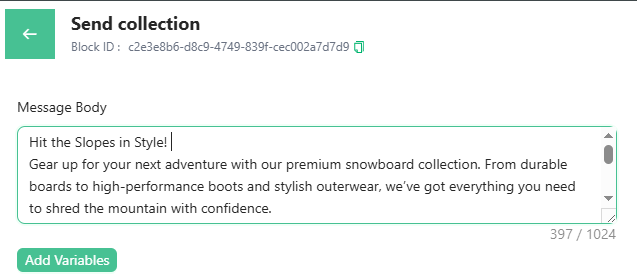
Message
Use this space to provide detailed information about your product collection, such as features, benefits, or any other relevant details to help customers make informed choices.
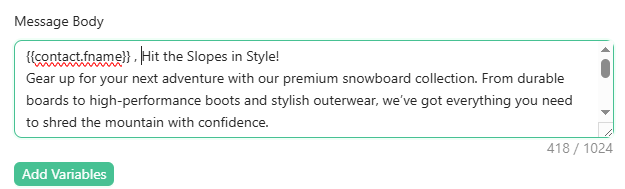
Use Variables
You can personalize your messages by adding data already collected from your customers.
-
Click "Add Variables" to open a Popup of available fields.
-
Quick tip: Ensure the selected variable contains data, or it won’t display properly in the message.
Catalogue
Select the catalog from which the collection will be displayed. If your catalog is not connected to Mark360 yet, make sure to set it up first.

Thumbnail
Thumbnails are groups of products that make it easier for customers to find and purchase what they want.
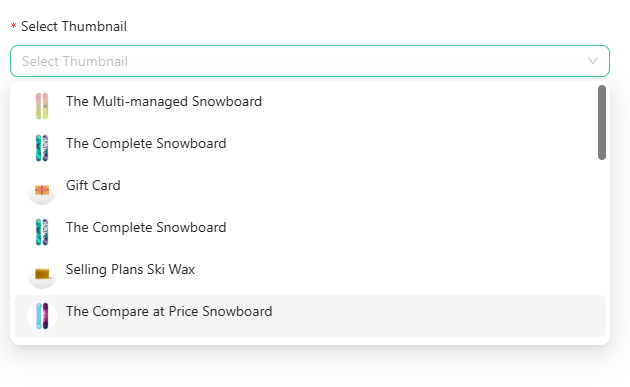
- Your catalog comes with a default collection called All Products, which contains all items in your catalog.
- For more information, refer to your Commerce Manager to create additional collections.
Footer
A footer appears at the bottom of the message and can include:
-
The sender's name and contact information
-
Instructions to unsubscribe from messages
-
Disclaimers or copyright notices
-
Links to your website or social media profiles

Duplicate / Delete / Edit Send Collection Card
When hovering over the card in Mark360, you'll see options to:
- Duplicate the card
- Edit the block (pencil icon)
- Delete the card
These options allow you to manage your collection cards efficiently.